
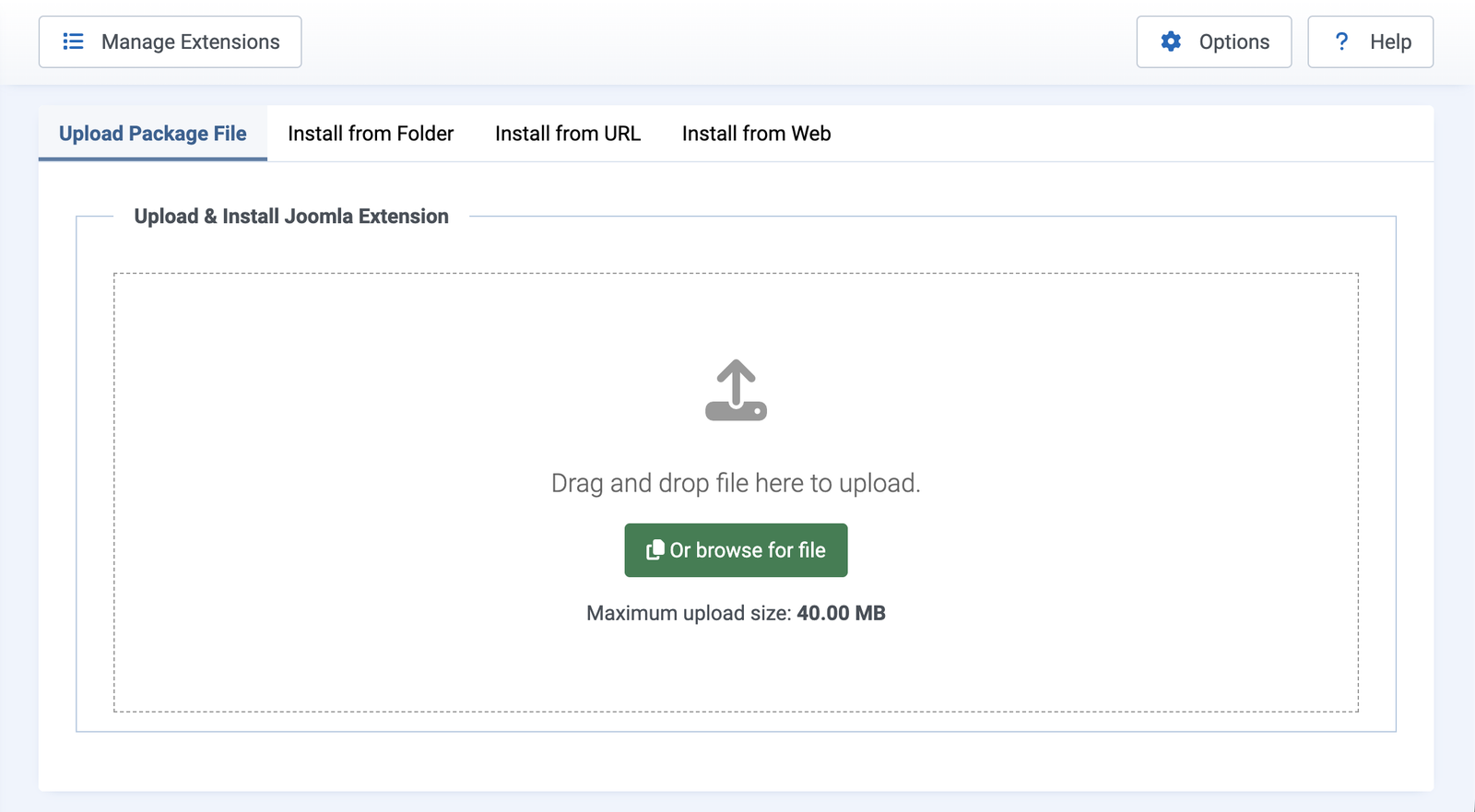
1. Download and Installation
After downloading the installation package from the Downloads page, install the extension through the Joomla installer.
System → Install → Extensions
Once the installation is completed successfully, go to:
Components → Scan Malware
2. Using Scan Malware
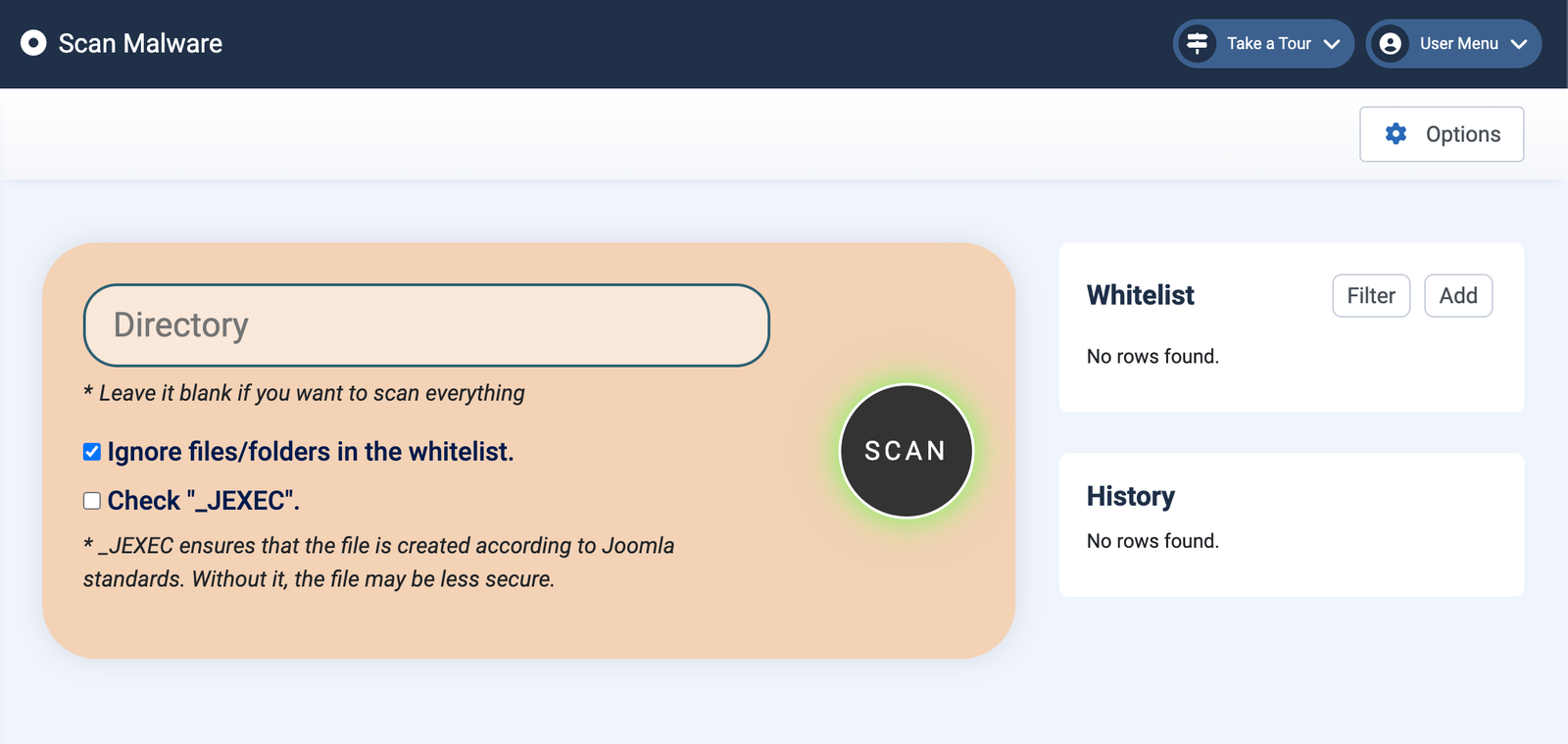
The Scan Malware dashboard contains three main sections:
- Scan: Start a scan and view the results.
- Whitelist: Trusted folders or files that should be ignored during scanning.
- History: Stores previous scan results for tracking and analysis.
Default File Types
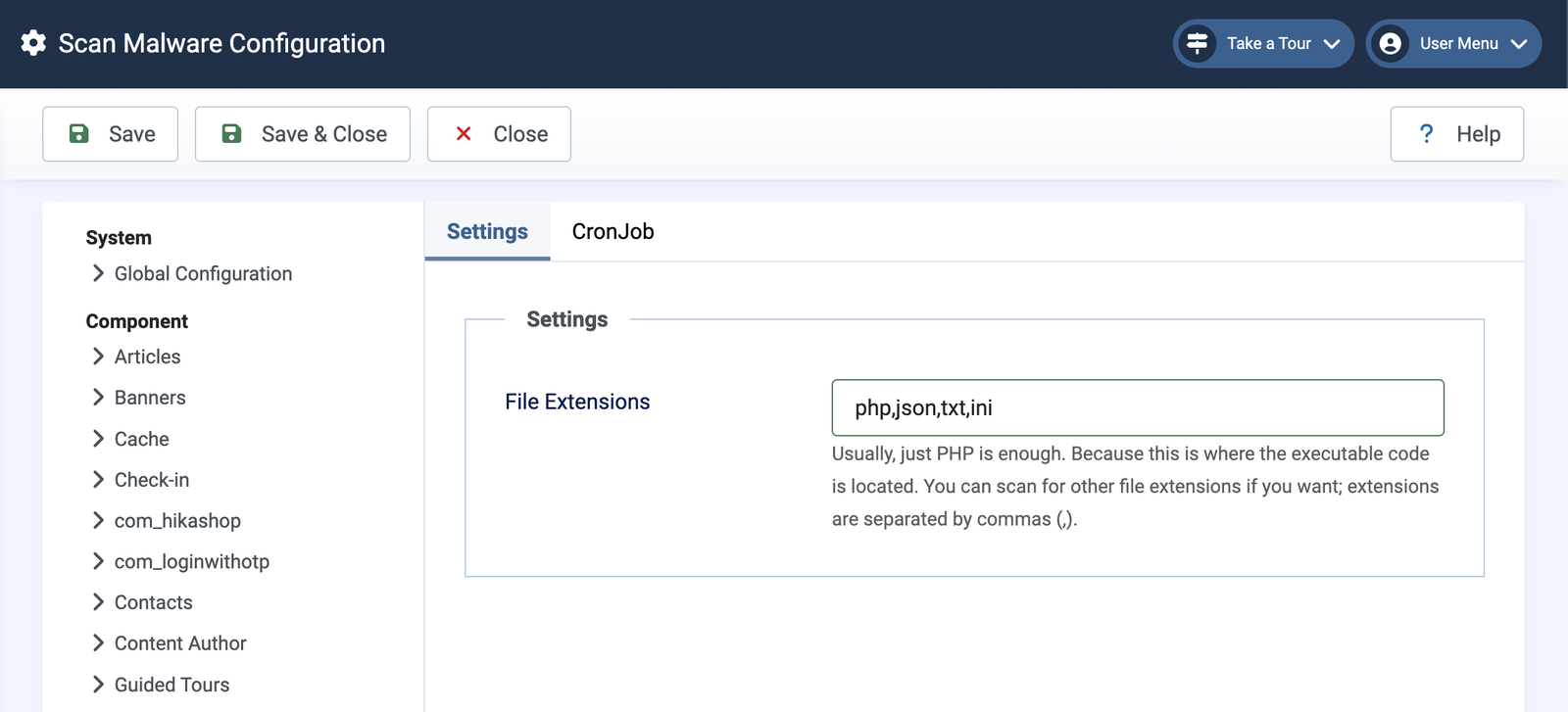
By default, Scan Malware scans only PHP files, because they are executable files and are the most common source of malware infections.
Some attackers may temporarily store malicious code in files such as .json, .txt, or .ini before renaming them to .php.
Selecting a Folder to Scan
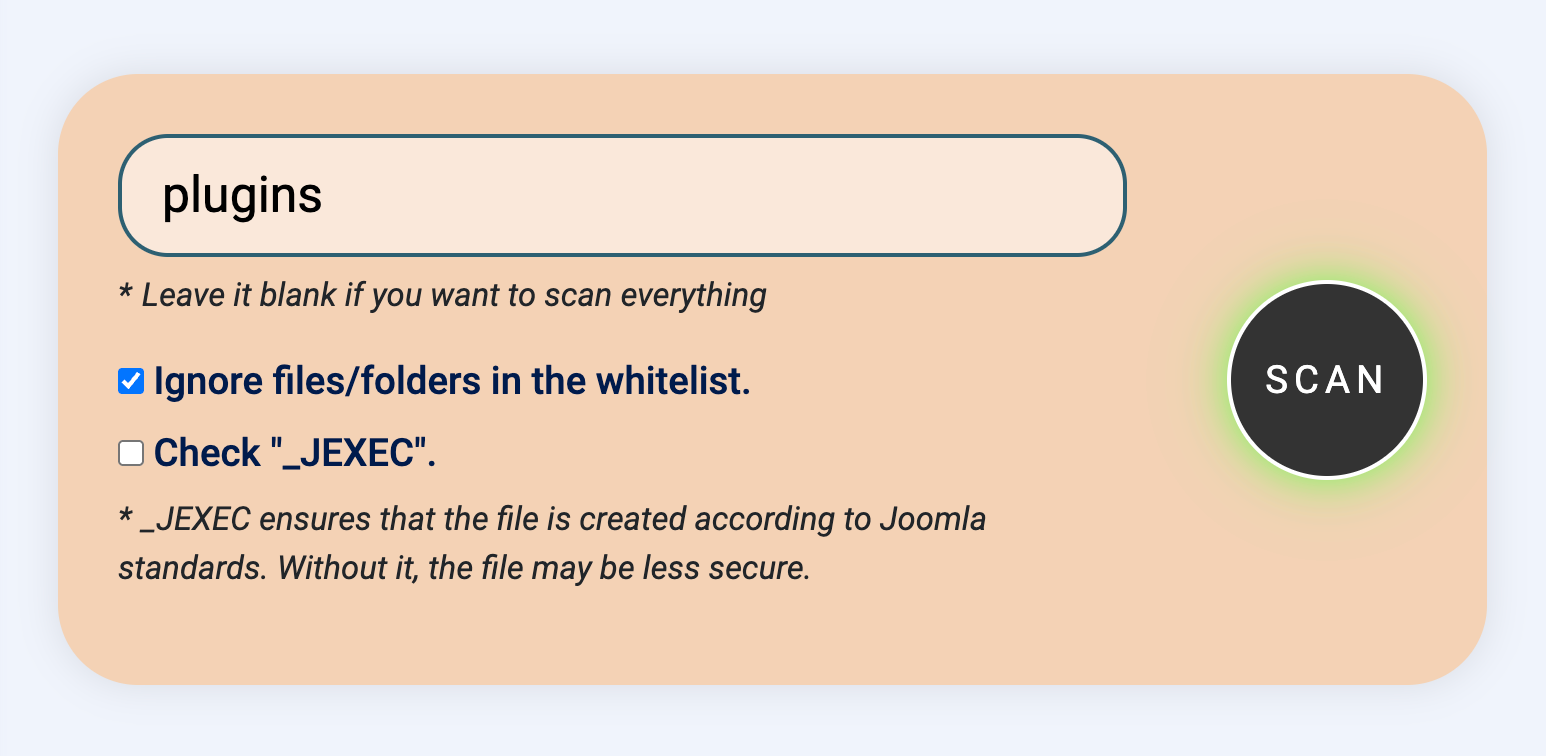
Enter the folder you want to scan.
- Leave the field empty to scan the entire website.
- To scan only the
pluginsdirectory, simply enterplugins.
Scan Options
- Ignore files/folders in the whitelist – Apply whitelist rules during scanning.
- Check "_JEXEC" – Verify whether files contain the Joomla security constant
defined('_JEXEC') or die;.
3. Understanding Risk Levels
- Critical
- High
- Medium
- Low
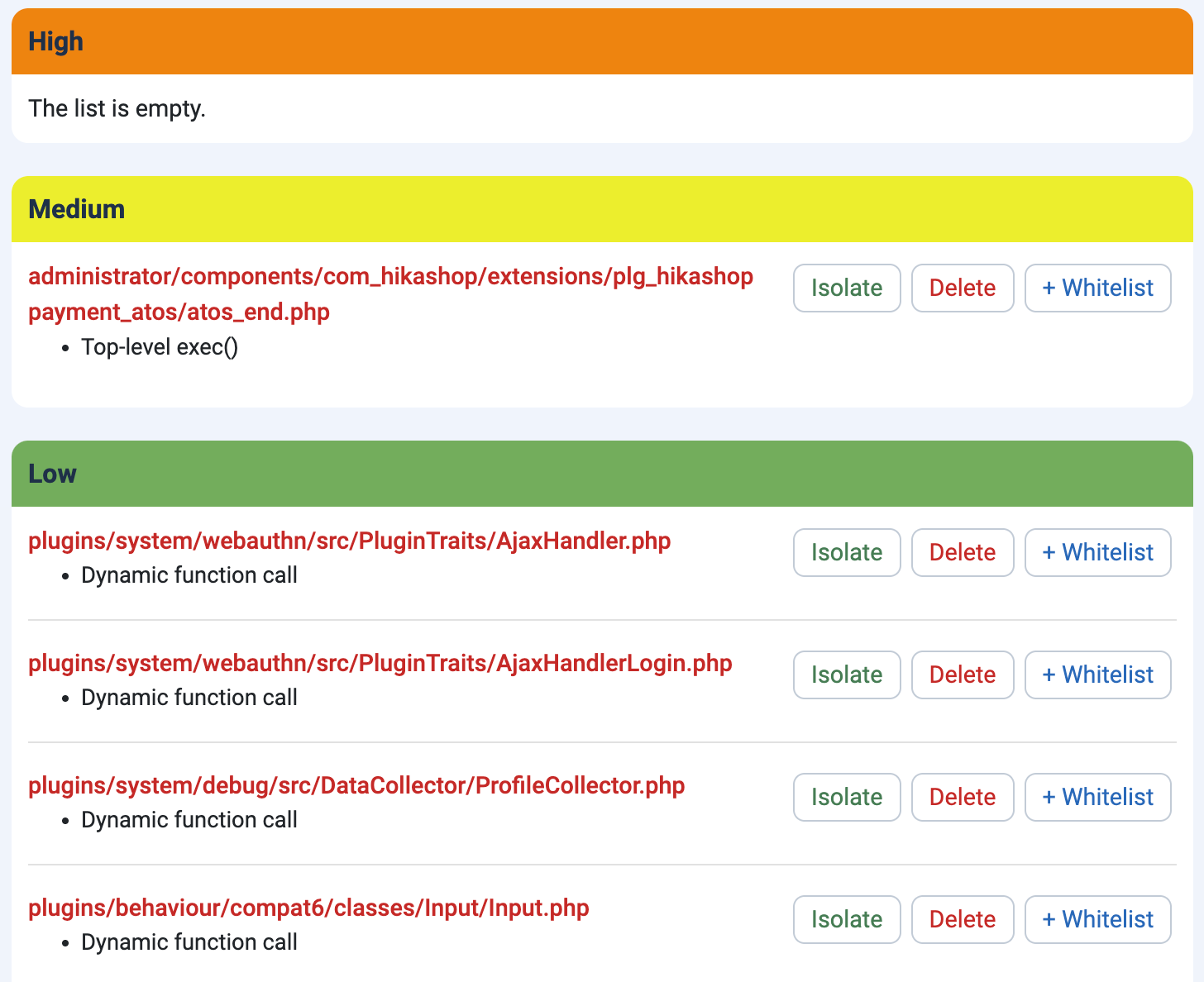
4. Handling Suspicious Files

Isolate File (Recommended)
This is the safest option. If the website shows errors after quarantine, click Undo and contact the extension developer.
Delete File
Use this option only when you are certain the file is malicious. Deleted files cannot be restored automatically.
Add to Whitelist
Add the file to the whitelist only if you are sure it is safe and trusted.
5. Scheduled Automatic Scans
The scheduled scanning feature in Scan Malware is performed through a CronJob on your server.
From the Scan Malware administration page, go to:
Options → CronJob
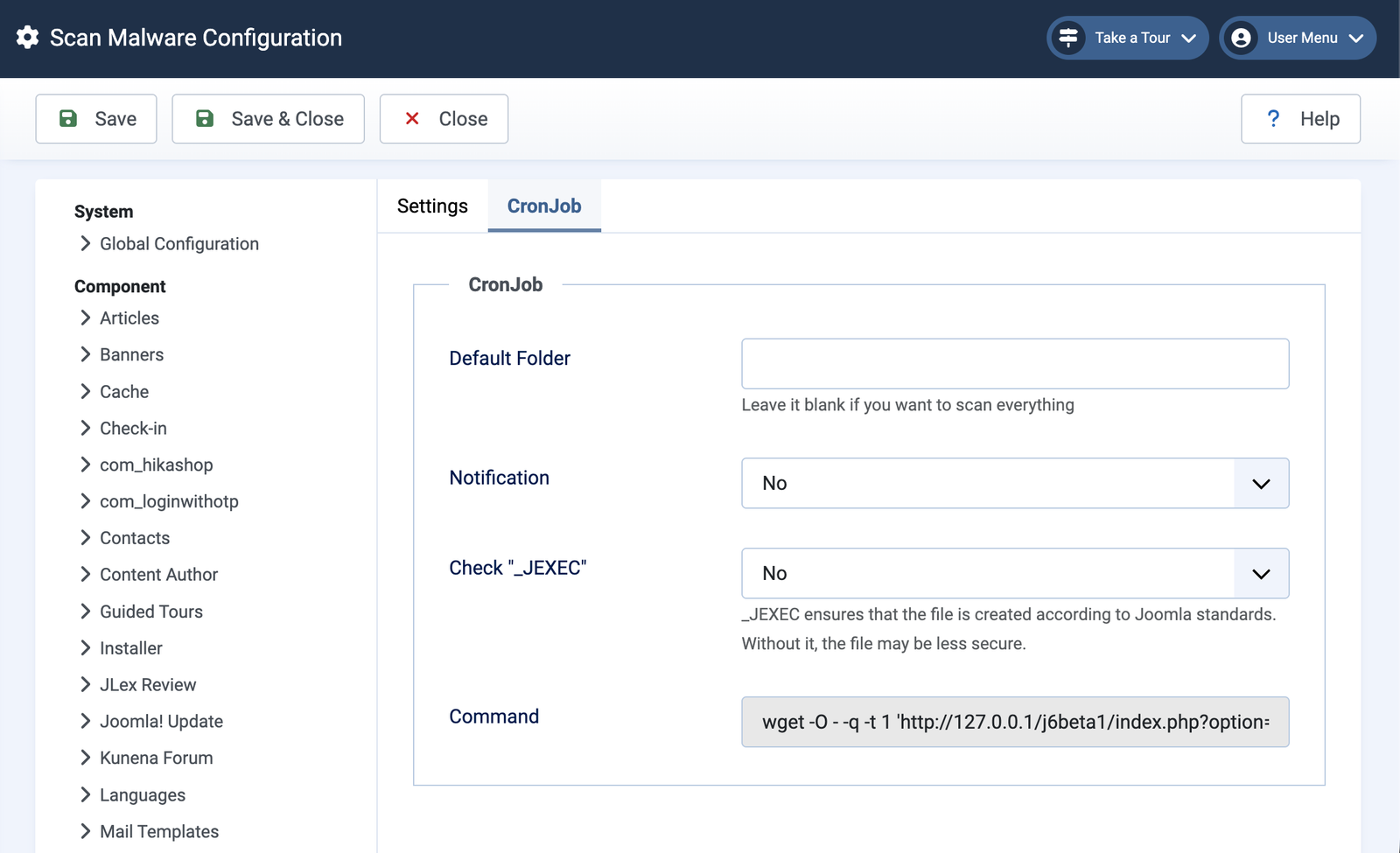
Default Folder
The folder to scan. Leave empty to scan the entire website.
Notification
Enable this option if you want scan results to be sent to your email address.
Check "_JEXEC"
Same behavior as described in the manual scan options.
Cron Command
Copy the command displayed on the page and add it to your hosting control panel or server CronJob manager.
6. Best Practices
- Run a full scan after installing new extensions or templates.
- Review Critical and High files first.
- Use Quarantine before deleting files.
- Keep the whitelist as small as possible.
- Enable scheduled scans for continuous monitoring.
- Keep Joomla and all extensions updated.
7. Need Help?
This concludes the Scan Malware documentation. If you have any questions, feedback, or suggestions, please contact us through the support page associated with this product.
Thank you for using Scan Malware.